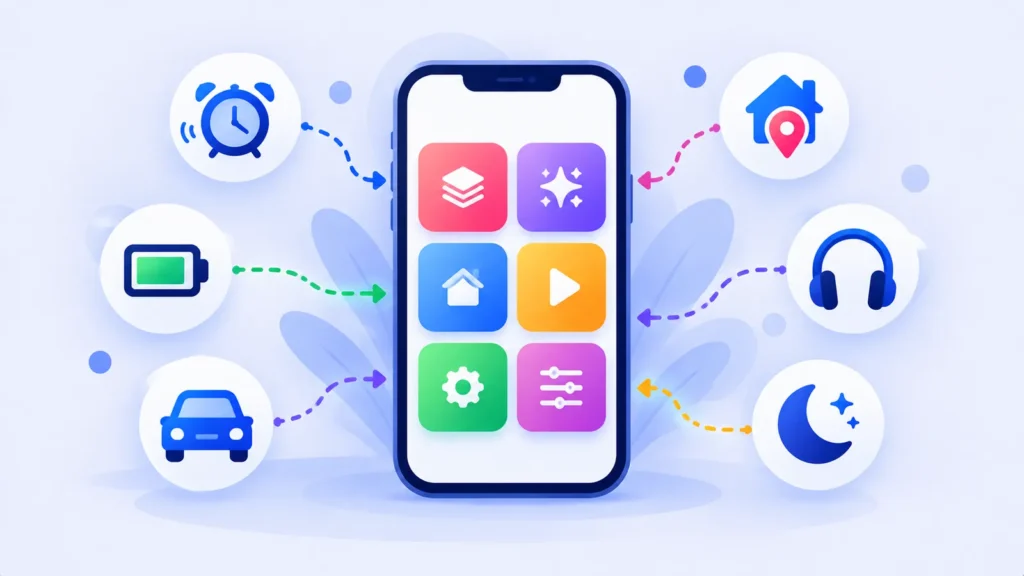
Your iPhone can do a lot of small jobs for you automatically, like turning on Low Power Mode, starting your driving playlist or switching to Sleep Focus at bedtime. All it takes is the free Shortcuts app that’s already on your phone.
Here’s how iPhone automations work and 10 useful ones to set up today.
What Are iPhone Automations?
Automations are actions that run when something happens, called a trigger. Triggers include a time of day, an alarm, arriving at or leaving a place, connecting to Wi-Fi, Bluetooth or CarPlay, opening an app, battery level, plugging in a charger and turning on a Focus.
Many automations can run immediately, while some ask you to confirm first.
How to Create an Automation (Step by Step)
- Open the Shortcuts app (it’s preinstalled; reinstall it free from the App Store if needed).
- Tap the Automation tab at the bottom.
- Tap + or New Automation.
- Choose a trigger, such as Battery Level or Time of Day.
- Set the details, then choose Run Immediately or Run After Confirmation.
- Add an action, such as Set Low Power Mode, and tap Done.
10 Useful iPhone Automations
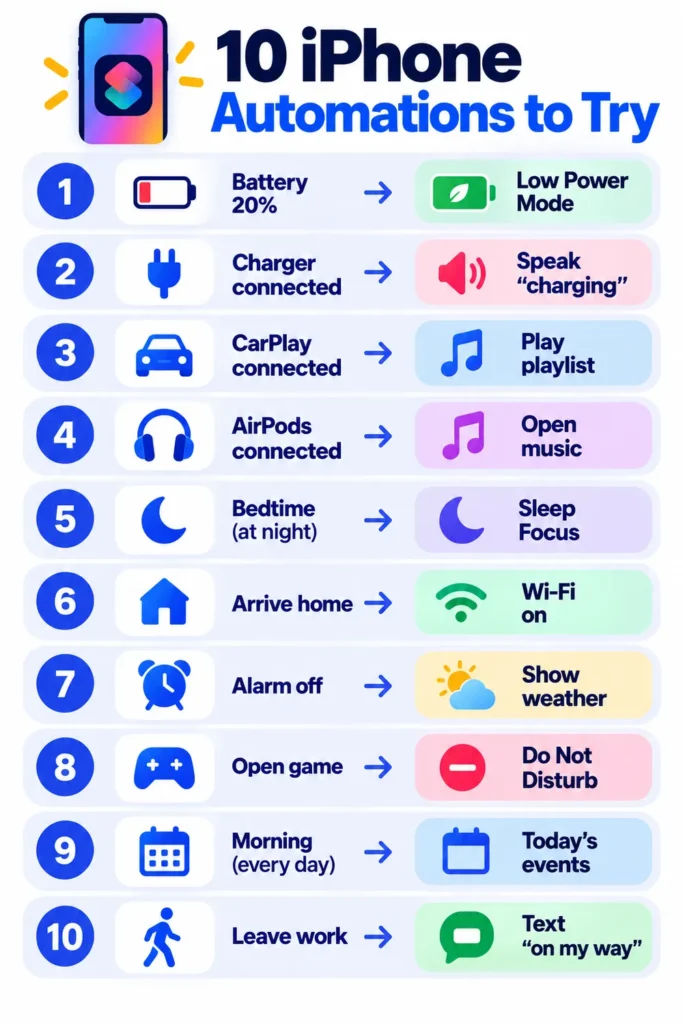
- Low Power Mode at 20%: Trigger: Battery Level falls below 20% → Action: Set Low Power Mode on.
- Charging confirmation: Trigger: Charger is connected → Action: Speak Text “Charging.” Great for wireless chargers.
- Unplug reminder: Trigger: Battery Level rises above 80% → Action: Show Notification “You can unplug now.”
- Driving music: Trigger: CarPlay connects → Action: Play your driving playlist.
- Headphones on, music ready: Trigger: Bluetooth device (your earbuds) connects → Action: Open your music app.
- Bedtime wind-down: Trigger: Time of Day (10 p.m.) → Actions: Set Focus to Sleep and lower brightness.
- Morning briefing: Trigger: Alarm is stopped → Actions: Get weather and show today’s calendar events.
- Gaming without interruptions: Trigger: App (a game) is opened → Action: Turn on Do Not Disturb.
- Arrive home: Trigger: Arrive at Home → Action: Turn on Wi-Fi (location automations may ask for confirmation).
- Leaving work text: Trigger: Leave Work → Action: Send Message “On my way home” to a family member (may ask for confirmation).
For more battery tips, see phone settings that save battery.
Note: Features and policies may vary by plan, region and app version, and can change at any time. Check the official help center for the latest information.
Tips and Troubleshooting
- Turn off “Notify When Run” in the automation settings to avoid extra notifications.
- Allow location access for location-based automations in Settings > Privacy & Security > Location Services.
- Test each automation once to make sure it does what you expect.
- Keep it simple. A few reliable automations beat many complicated ones.
Android and Smart Home Options
On Samsung phones, use Modes and Routines. On other Android phones, Google Assistant Routines and third-party apps offer similar features. For smart home devices across brands, see What Is IFTTT?
Frequently Asked Questions
Are iPhone automations free?
Yes. The Shortcuts app and its automations are free and built into iOS.
Why does my automation ask for confirmation?
Some triggers, especially location-based ones, and some actions, like sending messages, may require confirmation for privacy and safety.
Can automations run while my iPhone is locked?
Many can, but some actions need the phone to be unlocked.
How do I delete an automation?
Open Shortcuts → Automation tab, swipe left on the automation and tap Delete.
The Bottom Line
iPhone automations are free and surprisingly powerful. Start with Low Power Mode at 20% and a bedtime Focus, then add more as you find repetitive tasks. Small automations add up to real time saved every day.
Related Guides
- iPhone Storage Full After iOS 27? 10 Easy Fixes That Actually Work
- Why Is My Phone Overheating? 10 Easy Fixes for iPhone and Android
- How to Back Up Your iPhone (iCloud and Computer Methods)
- How to Use Gmail Filters to Automate Your Inbox (With 7 Ready Examples)
Explore more in our Tech Tips for Beginners hub.
Disclaimer: This article is for general information only and is based on details available at the time of writing. Prices, plans, features, release dates, policies and availability can change at any time and may vary by country. Please verify the latest information on the official website of the company or product mentioned before making any decision or purchase. Next DigiTech is an independent website and is not affiliated with or endorsed by the companies mentioned; all trademarks belong to their respective owners. We are not responsible for any loss or decisions made based on this content.