
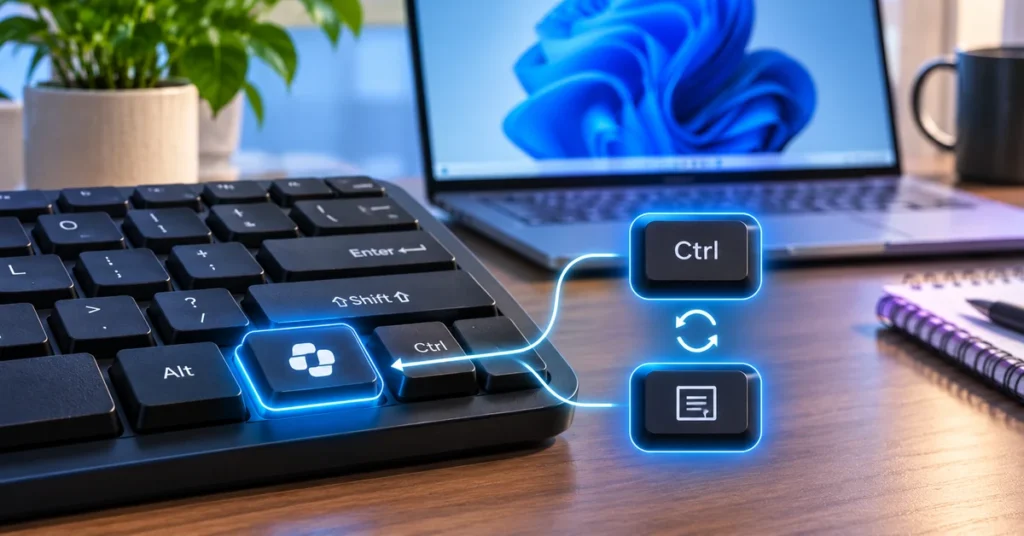
If your Windows keyboard has a dedicated Copilot key where you normally expect the Right Ctrl or Context Menu key, the shortcut you rely on may feel less convenient. Microsoft has started addressing that problem with a Windows 11 setting that lets supported devices assign the Copilot key to one of those familiar functions.
The option is included in the October 28, 2026 preview update for Windows 11 version 26H1, KB5127653. Microsoft says it is intended to help preserve keyboard shortcuts and accessibility workflows. Availability is being rolled out gradually, so the setting may not appear on every compatible PC immediately.
What does remapping the Copilot key do?
The Copilot key is a dedicated keyboard key found on some Windows 11 laptops and keyboards. Depending on the hardware, it may have taken the place of the Right Ctrl key or the Context Menu key. Those keys have established uses: Right Ctrl is part of many keyboard shortcuts, while the Context Menu key opens a menu for the selected item.
With the new setting, eligible Windows 11 devices can change the Copilot key so it behaves as either:
- Right Ctrl: Restores the right-side Control key function for supported shortcuts and workflows.
- Context Menu: Opens the context menu, similar to the keyboard key that some users previously had in that position.
This is a remapping option, not a way to add a second physical key. The Copilot key performs the selected function instead of its default Copilot action.
Which Windows 11 update adds the setting?
Microsoft lists the Copilot key remapping option in the October 28, 2026 preview update for Windows 11 version 26H1, KB5127653 (OS Build 28000.3365). The update is released in phases. During gradual rollout, features are enabled for devices over time, which means two PCs on the same Windows version may not show the option on the same day.
Do not assume that installing any Windows 11 update guarantees the setting will appear. Check your Windows version and update history, then look for the setting itself. Microsoft also notes that Copilot key implementations can vary by manufacturer, firmware and keyboard layout.
How to remap the Copilot key in Windows 11
Once the feature has reached your device, use the Windows Settings app:
- Open Settings by pressing Windows + I.
- Select Bluetooth & devices in the left sidebar.
- Open Keyboard.
- Find the Copilot key setting.
- Open its function selector.
- Choose Right Ctrl or Context Menu.
- Close Settings and test the key in an application where you normally use that function.
If the Copilot key section is missing, first check whether your device has a dedicated Copilot key and whether the update has reached your PC. The option is not a general remapping control for every key on every keyboard.
Which option should you choose?

Choose Right Ctrl if you use keyboard shortcuts
Right Ctrl is useful if your workflow depends on shortcuts that specifically use the right-side Control key, or if you are accustomed to having Control on both sides of the keyboard. It can also help users whose typing or accessibility setup expects a Right Ctrl key.
Microsoft calls out an important limitation: after mapping the Copilot key to Right Ctrl, combinations that include Right Ctrl + Windows and Right Ctrl + Shift will not work as normal. Microsoft recommends using the Left Ctrl key for those combinations.
Choose Context Menu if you use keyboard menus
The Context Menu option is useful if you regularly open context menus from the keyboard instead of using a mouse or trackpad. It can be particularly helpful when navigating files, folders or selected items with the keyboard.
If you rarely use either function, you may prefer to keep the default Copilot assignment. Choose based on the shortcuts and navigation habits you actually use.
How to check your Windows version and update
- Press Windows + R to open the Run dialog.
- Type winver and press Enter.
- Check the Windows version and OS build shown in the About Windows window.
- To check for updates, open Settings > Windows Update.
- Select Check for updates and install updates offered for your device.
- If you are looking for the optional preview update, check Advanced options > Optional updates, where available.
KB5127653 is specifically documented for Windows 11 version 26H1. Do not manually install a package intended for a different Windows version or device architecture. For managed work or school PCs, follow your IT administrator’s update policy.
Copilot key remapping vs manufacturer keyboard software
Some keyboard and laptop manufacturers provide their own utilities or firmware settings for changing special keys. Windows also provides the new built-in option for supported devices. Microsoft advises users whose device already has its own Copilot key remapping control to use either the Windows setting or the device setting, not both.
If your manufacturer offers a remapping tool, check its support documentation before changing the same key in two places. Conflicting settings can make it harder to understand which function is active.
Common problems and fixes
The Copilot key setting is not visible
Confirm that your keyboard actually has a dedicated Copilot key. Then check your Windows version and installed updates. The feature is in a gradual rollout, so it may not have reached your device yet. Also check your PC manufacturer’s support information for keyboard-specific controls.
The key still opens Copilot after changing it
Return to Settings > Bluetooth & devices > Keyboard and confirm the selected function. If your PC has manufacturer keyboard software, check whether it is also controlling the key. Restart Windows after applying the setting if the behaviour does not update immediately.
Some shortcuts do not work after choosing Right Ctrl
This is an expected limitation for combinations that use Right Ctrl + Windows or Right Ctrl + Shift. Microsoft recommends using Left Ctrl for those combinations. Test the shortcuts you depend on before settling on the new mapping.
My keyboard does not have a Copilot key
This feature is intended for keyboards with a dedicated Copilot key. It does not add a new key to a standard keyboard or provide a universal way to remap any arbitrary key.
Frequently asked questions
Can I change the Copilot key to Right Ctrl?
Yes, on supported Windows 11 devices after the remapping setting becomes available. Open Settings > Bluetooth & devices > Keyboard and choose Right Ctrl in the Copilot key selector.
Can I change the Copilot key to the Context Menu key?
Yes. The new setting offers Context Menu as an alternative function on supported devices.
Does this feature work on every Windows 11 PC?
No. It applies to devices with a dedicated Copilot key, and availability depends on the Windows update rollout and device support. Microsoft specifically lists the feature in the Windows 11 version 26H1 KB5127653 preview update.
Will remapping remove Copilot from Windows?
No. It changes what the dedicated keyboard key does. It does not uninstall the Copilot app or remove Copilot features from Windows.
Can I use the manufacturer’s keyboard utility instead?
Some manufacturers provide their own controls. Microsoft recommends using either the Windows remapping setting or the manufacturer’s setting, rather than configuring both for the same key.
Before you change the key: check your keyboard layout
Not every Copilot key is positioned or implemented in exactly the same way. Some manufacturers replace the Right Ctrl key, while others may use the position normally associated with the Context Menu key. Look at the physical keyboard and check the laptop’s support page if you are unsure which key was replaced.
It is also worth testing your most-used shortcuts before and after remapping. For example, try the editing or navigation combinations you regularly use in your browser, document editor and accessibility tools. If the Right Ctrl mapping causes a shortcut conflict, switch to Left Ctrl for the combinations Microsoft identifies or select Context Menu if that better matches your routine.
What if your PC is managed by work or school?
On a managed Windows device, update availability and keyboard policies may be controlled by your organization. If the setting is missing or greyed out, contact your IT administrator before attempting a manual update or using third-party key-remapping software. Administrators can also manage Copilot key behaviour through Windows management policies, so the setting available to an individual user may differ from a personal PC.
Final thoughts
The new Copilot key setting is a small but useful Windows 11 change for people who miss the Right Ctrl or Context Menu key on newer keyboards. If you use those functions regularly, check whether the update has reached your device and choose the mapping that best matches your workflow. Remember the Right Ctrl shortcut limitation, and avoid configuring the same key in both Windows and manufacturer software.
For more Windows 11 productivity tips, read our guide to using Windows 11 Search Actions from the taskbar.

