
Sharing your location with family can bring peace of mind. A parent can see that a teenager reached school, friends can find each other at a crowded event, and you can help someone find you when you are lost. But live location is personal data, so it is worth sharing it on purpose, with the right people and for the right length of time. This guide shows how to share on iPhone and Android and how to keep control.
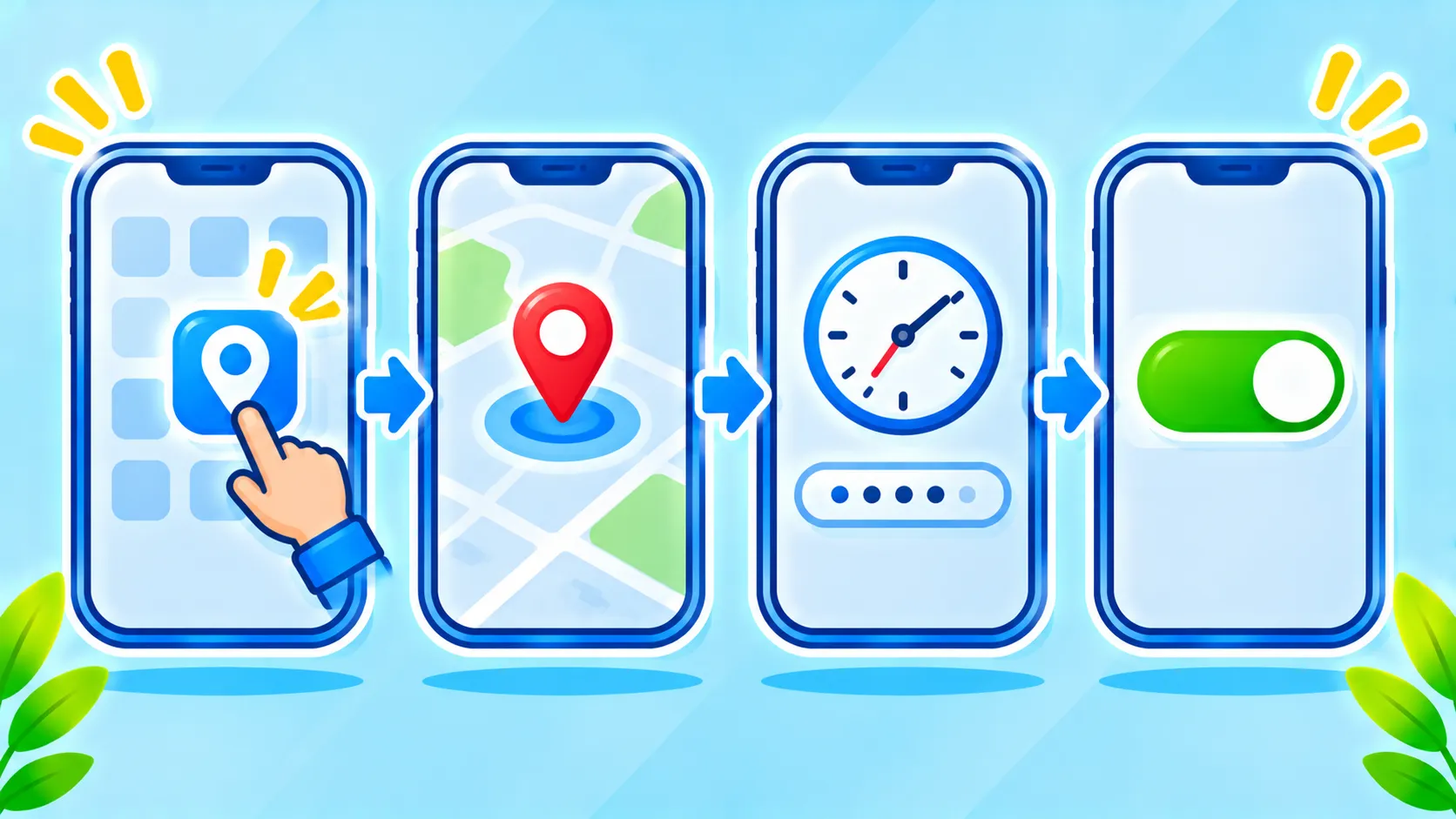
Quick answer: On iPhone, open Find My, tap People, then Start Sharing Location and choose a time limit. On Android, open Google Maps, tap your profile picture, then Location sharing, and pick a person and duration. Share only with trusted people, prefer time limits and review your sharing list regularly.
Think before you share
Ask yourself three questions: who needs to see this, how long do they need it, and can they turn it off easily? Sharing for a trip or an evening is different from sharing permanently. It is also respectful to agree on it openly, especially with older children, partners and relatives.
Share your location on iPhone
- Open the Find My app and tap the People tab.
- Tap Start Sharing Location.
- Enter the contact and choose a duration: for one hour, until end of day or indefinitely.
- To stop later, open the person’s entry and choose Stop Sharing My Location.
You can also share from the Messages app by opening a chat, tapping the contact name and choosing Share. Family Sharing users can set up location sharing for family members in Settings.
Share your location on Android with Google Maps
- Open Google Maps and tap your profile picture.
- Choose Location sharing.
- Tap Share location, pick a time or choose until you turn this off, and select a person or app.
- To stop, return to Location sharing and tap Stop.
Some Android phones also include their own family or safety features. Menu names vary between brands and versions. Google’s help page on managing Location Sharing has the details.
Safer sharing tips
- Use time limits. Share for an hour or a day instead of forever unless there is a good reason.
- Share with trusted people only. Review the list regularly and remove old contacts.
- Check who has access. Look through location sharing lists in Find My and Google Maps.
- Protect your account. Turn on two-factor authentication so no one else can sign in as you.
- Review app permissions. Many apps ask for location. Our app safety checklist helps you judge them.
For parents
Location sharing is one tool among several. Combine it with conversation, clear rules and device settings. Our guide to parental controls on iPhone and Android covers more options. Explain why you are sharing and listen to how the child feels about it.
For personal safety
If you worry that someone is tracking you without your consent, check your sharing lists, installed apps and unknown devices. Read about signs of a hacked phone. If you are in danger, contact local emergency services or a support organization.
Lost your phone? Location helps there too
Location features can also help you recover a missing device. See how to find a lost phone and how to lock a stolen Android phone.
Frequently asked questions
Does location sharing drain the battery?
It uses some battery, but the impact is usually modest. Heavy use of GPS with maps can increase it.
Can people see my location if my phone is off?
They usually see the last known location. Exact behavior depends on the service.
Will the other person get a notification when I stop sharing?
It varies by service. Some may simply show that sharing ended.
Note: Menus, features and notifications differ across phone models and software versions.

