
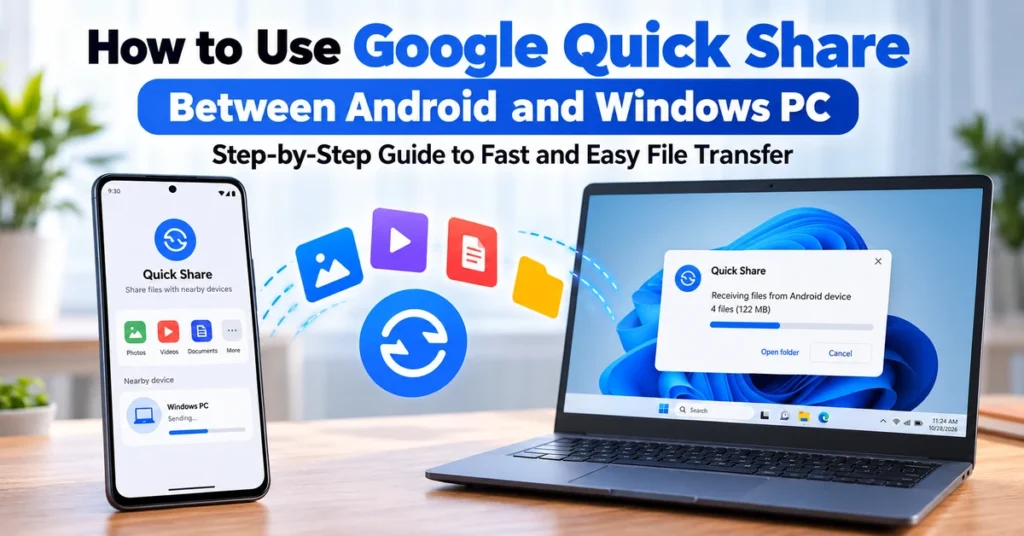
Moving photos, videos, documents and other files between an Android phone and a Windows PC should not require emailing files to yourself or hunting for a cable. Google’s Quick Share can transfer files wirelessly between nearby Android devices and compatible Windows computers. This guide explains how to set it up, send files in both directions, choose safer visibility settings and fix common connection problems.
What is Quick Share?
Quick Share is Google’s nearby file-sharing feature. It lets compatible Android devices and Windows PCs discover one another and exchange photos, videos, documents and folders. A recipient must approve an incoming transfer, and Google says Quick Share transfers are encrypted. It is useful when you want to move phone photos to a laptop, send a document to your phone, or share files without using cloud storage.
Quick Share is built into Android 6.0 and newer devices. On a Windows PC, you generally need to install the Windows app. Samsung computers should use Samsung’s Quick Share app from the Microsoft Store rather than Google’s Windows app.
Check the requirements before you start
- Android phone: Android 6.0 or newer with Quick Share available.
- Windows PC: 64-bit Windows 10 or newer. ARM-based Windows devices require Windows 11 or newer.
- Samsung PC: Install Samsung Quick Share from the Microsoft Store.
- Connections: Turn on Bluetooth and Wi-Fi (or Ethernet on the PC). Google recommends that both devices use the same network.
- Distance: Keep the devices nearby, ideally within 5 metres (16 feet).
Requirements and availability can vary by device and region. If you are unsure which Android version you have, follow our guide on how to check your phone’s operating system version.
How to set up Quick Share on a Windows PC
- On your Windows computer, open Google’s official Quick Share for Windows page.
- Download the installer and complete the installation.
- Open Quick Share and sign in with your Google Account to access the available sharing options.
- Choose a device name that will help you recognise the PC from your phone.
- Open the app’s settings and review Device visibility and receiving preferences.
Do not launch the Google app as an administrator. Google notes that running it with administrator privileges can interfere with drag-and-drop sharing. Use a normal Windows account instead.
How to send files from Android to Windows
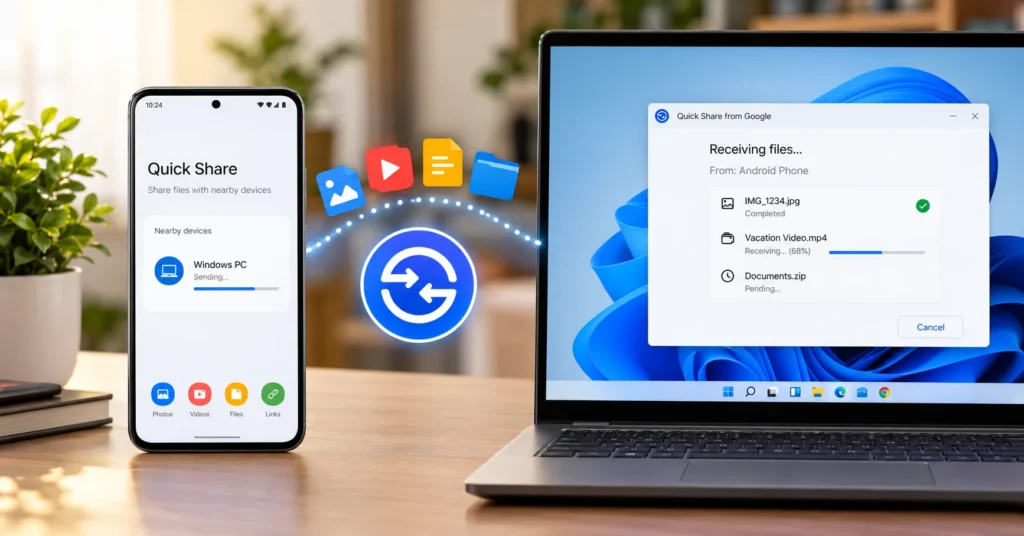
- Make sure Quick Share is enabled on your phone and the Windows app is open or available in the background.
- Open the photo, video, document or file you want to send. You can select multiple items in a compatible file or gallery app.
- Tap Share, then choose Quick Share. The wording or location can vary by Android manufacturer.
- Wait for your Windows PC to appear in the nearby-device list. Check that the PC’s visibility setting allows your phone to find it.
- Tap the PC name. If a confirmation or matching PIN appears, check it before continuing.
- Accept the incoming request on Windows if prompted, then wait for the transfer to finish.
Keep both devices close during discovery and transfer. Large videos may take longer than a few photos, and wireless conditions can affect transfer speed.
How to send files from Windows to Android
- Open Quick Share on your PC.
- Drag files or folders into the app window, or choose the option to select files or folders.
- Wait for your Android phone to appear. If it does not, check the phone’s Quick Share visibility setting.
- Select the correct phone from the list and choose Share.
- Check the request on your phone and tap Accept to receive the files.
If drag-and-drop does not work, locate the file in File Explorer, right-click it and look for Send with Quick Share. Also check that the Windows app is not running as administrator.
Choose the right visibility setting
Device visibility controls who can discover your phone or PC. The exact options can differ slightly by device, but Google’s Windows app provides these choices:
- Your devices: Limit discovery to devices signed in with the same Google Account. This is a good default when transferring between your own devices.
- Contacts: Allow nearby contacts to discover the device, where supported.
- Everyone: Make the device discoverable to nearby Quick Share users. Use this only when needed.
- No one: Prevent other devices from discovering you.
For routine personal transfers, choose Your devices where available. If you temporarily switch to a broader setting to receive a file, change it back afterwards. Always review the sender and file details before accepting an unexpected request.
Where do received files go?
Files received by the Windows app are saved in a folder named Quick Share inside Downloads by default. On Android, the destination can vary by file type and device software; check the notification or the relevant Downloads, Photos or Files app if you cannot immediately find an item.
Quick Share not working? Try these fixes
1. The other device does not appear
Turn on Bluetooth and Wi-Fi on both devices, check visibility settings, and move the devices closer together. Confirm that both devices are connected to the same network where possible. Keep them within about 5 metres while pairing.
2. The transfer request never arrives
Make sure the receiving device is discoverable and that notifications are enabled. On Windows, check Settings > System > Notifications and allow notifications from Quick Share. Focus or Do Not Disturb settings can also hide alerts.
3. The transfer starts but fails
Try sending a smaller file first, close and reopen Quick Share on both devices, and temporarily reconnect both devices to the same Wi-Fi network. If you are on a restricted office or public network, network rules may block device-to-device discovery. A personal hotspot may help in some cases.
4. Windows cannot drag and drop files
Check that Quick Share is not running as administrator. Use the right-click Send with Quick Share option as an alternative.
5. Your Samsung laptop is not compatible with Google’s app
Install Samsung’s Quick Share app from the Microsoft Store on Samsung PCs. Google’s Windows app is intended for non-Samsung PCs.
6. You still cannot connect
Restart both devices, toggle Airplane mode off and on on the phone, and try again. Also check for pending system or app updates. For more general connection checks, see our guide to fixing Wi-Fi connected but no internet.
Is Quick Share safe to use?
Quick Share is designed for nearby transfers, not public file hosting. Google says transfers are encrypted and that recipients must approve incoming requests. You can reduce unwanted discovery by choosing Contacts or Your devices instead of Everyone, and by switching visibility off when you finish.
Encryption does not mean every incoming file is automatically safe. Treat unexpected files as untrusted: confirm who sent them, check the filename and file type, and do not open suspicious attachments. Quick Share is a transfer method, not an antivirus scanner.
Quick Share vs emailing files to yourself
Quick Share is convenient for nearby devices because it avoids uploading a file to an email or cloud account first. Email or cloud storage may still be better when the recipient is far away, when you need a shareable link, or when you want a file available across devices later. Choose the method that fits the job rather than assuming one option is always faster.
Frequently asked questions
Do I need to install Quick Share on Android?
Usually not. Quick Share is built into Android 6.0 and newer devices. You need to install the Windows app on a compatible PC.
Can Quick Share send folders?
Yes. The Windows app lets you select folders as well as individual files. Support and the available options on Android can vary by device.
Does Quick Share work without the internet?
Quick Share is intended for nearby device-to-device sharing and does not require you to upload files to a cloud drive. However, Wi-Fi and Bluetooth need to be enabled, and network conditions or device compatibility can affect discovery and transfer.
Can I use Google’s Quick Share app on a Samsung laptop?
Google directs Samsung PC users to Samsung’s Quick Share app in the Microsoft Store. Use the app intended for your computer brand.
Where are files received on Windows saved?
They are saved in the Quick Share folder inside Downloads by default.
Final thoughts
Quick Share is a practical way to move files between an Android phone and a Windows PC without a cable or an email round trip. Install the correct Windows app, keep Bluetooth and Wi-Fi enabled, set visibility to a trusted option, and approve only transfers you recognise. If discovery fails, checking visibility, distance, notifications and network settings solves many common problems.
Official references: Google’s Quick Share setup and troubleshooting guide and the official Quick Share for Windows page.

